Live worship interpretation for visitors — listen on your phone
No interpreter booth and no receivers to hand out: visitors listen to the sermon interpretation on their own phones and earbuds. The operator opens a listening room and shows a QR code; people scan it and listen in the browser. No app, no sign-up.
How it works
- The operator creates a listening room on the PC. It gets a code, a share link and a QR code.
- Show the QR code on the screen, in the bulletin or on a welcome card.
- Visitors scan it with their phone camera and the listening page opens in the browser.
- Each person picks a language and gets the interpreted voice and captions while the sermon goes on.
1. Create a listening room (operator)
- On the Live page, in the “Outputs” card, click Cloud Listen.
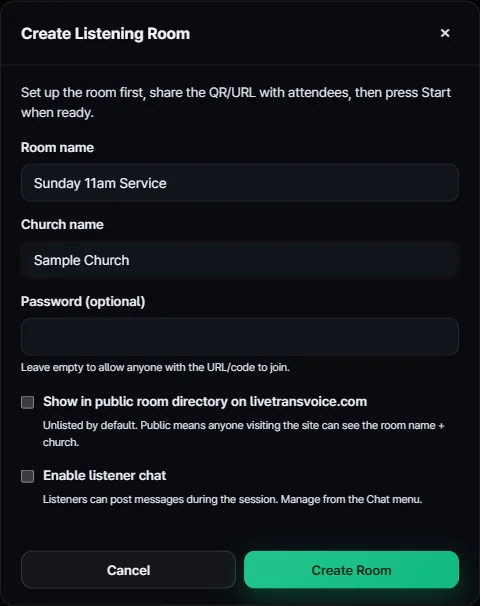
- Fill in “Create Listening Room”:
- Room name (required), e.g. Sunday 11am service
- Church name (required)
- Password (optional), at least 4 characters. Without one, anyone with the link or code can join.
- Show in public room directory on livetransvoice.com. Off by default. When on, site visitors can see the room and church name.
- Enable listener chat. Listeners can send messages during the service, shown instantly or after you approve them.
- Click “Create Room”. A code (8 characters), a share URL and a QR code appear.
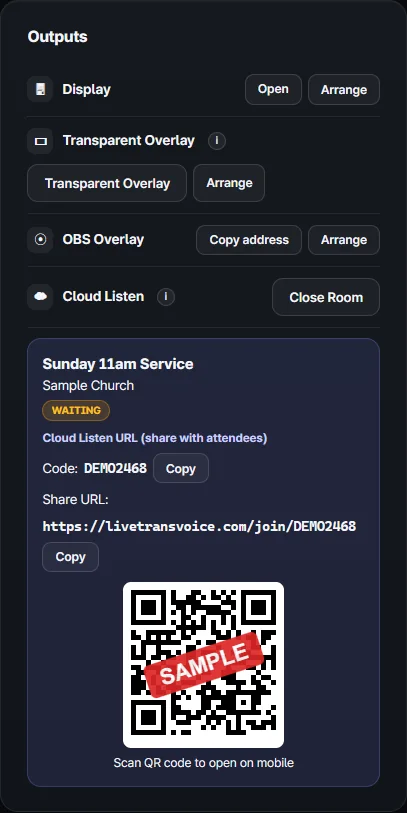
You can create the room before the service and share the QR early. People who join first see a “Waiting for host to start...” screen, and the audio starts as soon as you press Start.
2. Share the QR code and link
- On screen: put the QR code on a pre-service announcement slide.
- Bulletin or welcome card: print the QR code with the 8-character code next to it, for phones whose camera does not cooperate.
- Messaging apps: copy the “Share URL” into your group chats.
To join with the code, people go to livetransvoice.com/rooms and type it into the “Room code” box. Public rooms are also listed there.
3. How listeners join
- Scan the QR code with the phone camera and open the link.
- Enter the password if the room has one.
- Tap “Listen Now”, then “Start Listening”.
- If several languages are running, pick one in the “Choose your language” box.
- Put in earbuds and listen. Captions in the same language appear on screen.
Listeners can change, on their own phone: the translation language, the page language, font size (4 steps), a light theme, volume and playback speed.
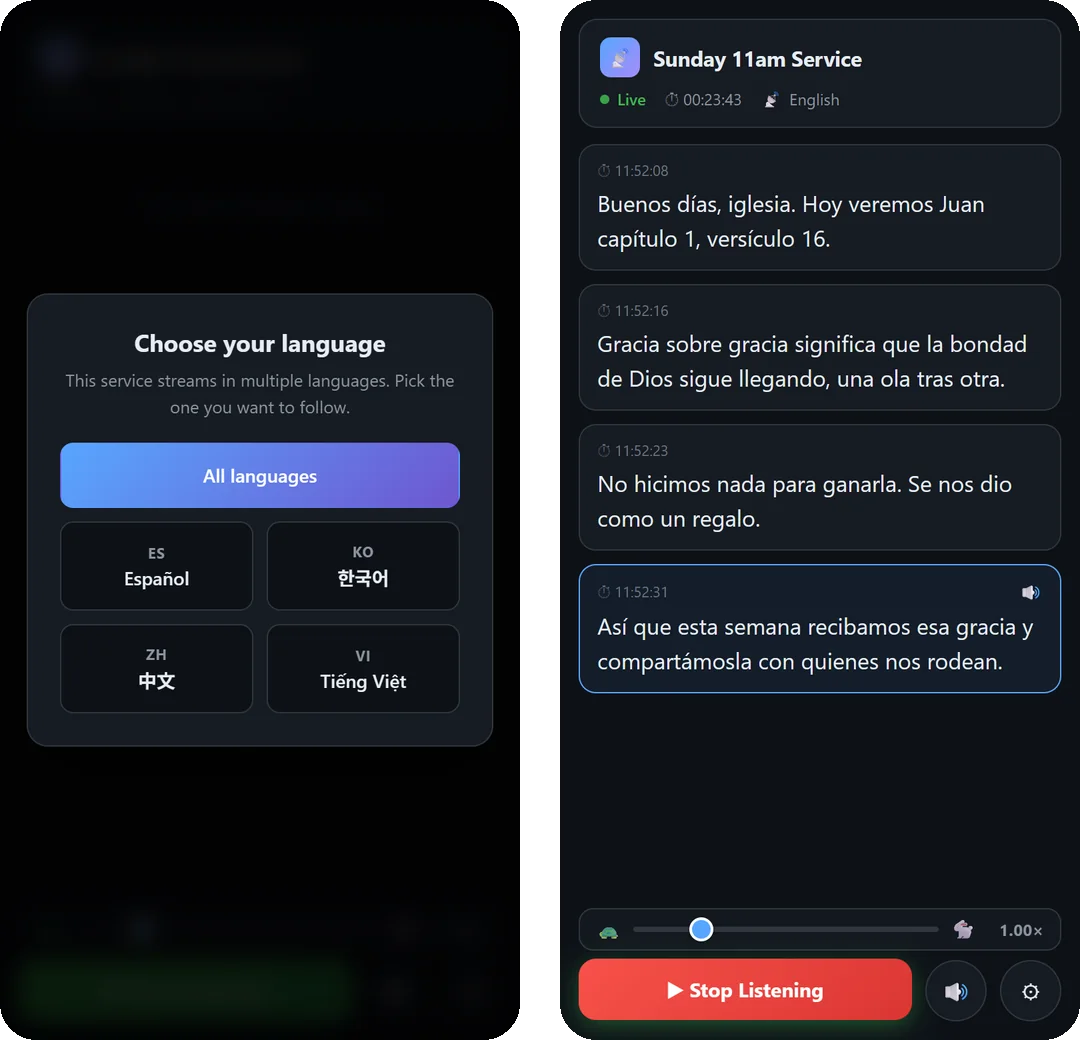
What the interpreted voice sounds like
In Relay mode each translated sentence is read aloud; in Realtime V1 and V2 the interpreted voice keeps flowing while the preacher speaks. In Relay you can choose the voice quality tier, and voice is produced only for languages that currently have listeners.
Tips for Sunday
- Ask visitors ahead of time to bring earbuds.
- Church Wi-Fi can get busy; let people know mobile data works too.
- After the service, click “Close Room”. One license can have one listening room open at a time.
- For same-network use only, there is also a “Local listening page”, but the cloud listening room is easier for QR sharing and language choice.
Common questions
Do listeners need to install an app?
No. It opens in the normal browser on iPhone and Android, with no sign-up.
Can we hand out the QR code before the service?
Yes. Create the room early; people who join first wait on a holding screen until interpretation starts.
Can we keep outsiders out?
Set a password when you create the room and leave the public directory option off. Rooms are private by default.
Can different people listen in different languages?
Yes. Add up to 10 languages under Multi-Language and each listener picks their own.
Try it this Sunday
Install it on a Windows PC and request a license to begin. Listeners do not need to install anything.
Request a license · Download