Live sermon translation for your church: getting started
LiveTransVoice is church interpretation software that listens to the preacher and translates the sermon live into other languages. Translated captions go to your sanctuary screens and livestream; translated voice and captions go to people's phones. This guide takes you from installation to your first interpreted sermon.
What you need
- A Windows 10 or 11 PC (64-bit) for the operator. There is no Mac version of the operator app at the moment.
- An internet connection. A wired connection is best.
- The sermon audio coming into the PC. The cleanest option is an aux or record output from your sound desk into an audio interface. A USB microphone also works.
- A license key and credit, requested from the website (step 2).
- Listeners do not install anything. They use the browser on their phone.
1. Download and install
- On livetransvoice.com, click Download for Windows.
- Run the installer.
- On first launch a short setup runs: “Welcome to LiveTransVoice” (app language) → “Enter License Key” → “Select Microphone” → “Language Setup” → “All Set!”.
- Finally, enter your church name. It is used for your listening rooms and your sermon archive page.
The app itself can be shown in English, Korean, Spanish, Chinese or Japanese. You can change it later under Settings → UI Language.
2. Request a license and add credit
- Click Request License on the website and enter your name, email, church or organization and country.
- Your license key arrives by email. Paste it into the “Enter License Key” step.
- Interpretation is paid from prepaid credit, by usage. Follow Account → Buy Credits in the app to top up. Your balance is shown in the sidebar.
If credit runs out, interpretation stops, even in the middle of a service. The app warns you when the balance is low, so check it before Sunday.
3. Connect the microphone and check the level
- Go to Settings → Audio Input → Microphone and choose the device that carries the sermon. Click “🔄 Refresh” if it is not listed.
- Click “Test Microphone”, speak, and watch the level meter move.
- If the input is quiet, raise the input boost (50% to 500%).
To interpret sound playing on the PC itself (a recorded sermon, for example), choose the 🔁 Loopback entry in the microphone list. No Windows settings need changing.
Translation quality follows input quality. A clean feed straight from the sound desk is far more accurate than a microphone picking up the speakers in the room.
4. Choose the source and target languages
Under Settings → Translation Language, set two things:
- Source Language: the language the preacher speaks. You choose it; it is not auto-detected.
- Target Language: the language to interpret into.
To interpret into several languages at once, open Multi-Language in the sidebar, choose “Multi” and use “Add”. You can run up to 10 languages at the same time.
5. Pick an interpretation mode
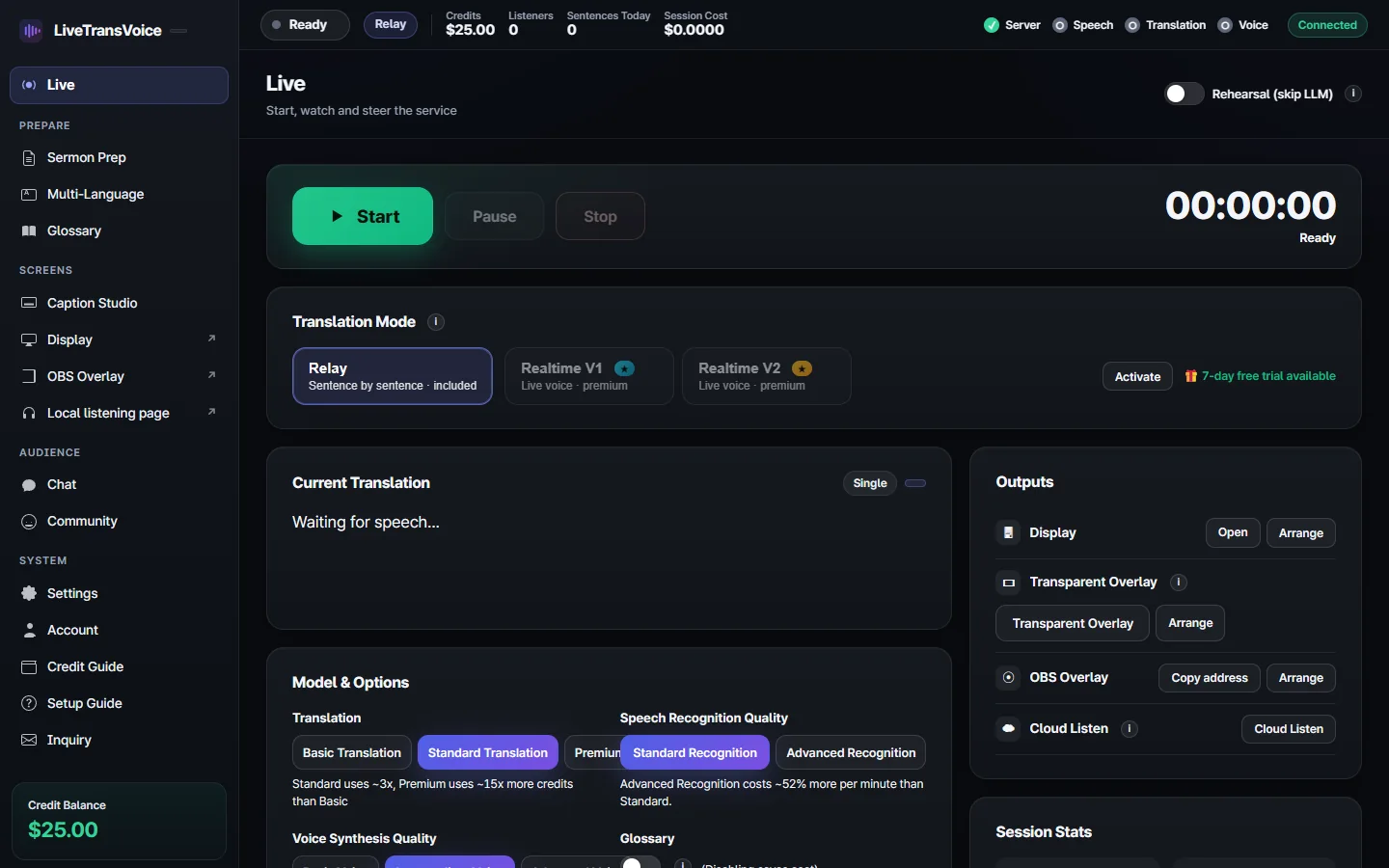
On the Live page, choose one of three modes. You can change the mode after stopping a session.
| Mode | How it works | Good to know |
|---|---|---|
| Relay Sentence by sentence · included | When the preacher finishes a sentence, it is translated and sent out as captions and voice, with the surrounding sermon context taken into account. | Available by default. |
| Realtime V1 Live voice · premium | Interpreted voice and captions keep flowing while the preacher is still speaking. | Needs to be activated in the app. The first time is a 7-day free trial, then 30 days at a time, with no auto-renewal. |
| Realtime V2 Live voice · premium | The same live style as V1. | Output is limited to 13 languages: English, Spanish, French, German, Italian, Portuguese, Japanese, Korean, Chinese, Russian, Hindi, Indonesian and Vietnamese. |
In Realtime V1 and V2, Pause still costs credit. For long breaks (announcements, worship sets), press Stop. In Relay, Pause really pauses.
6. Start interpreting
- Open Live at the top of the sidebar.
- Press “Start”. Use “Pause” (then “Resume”) for short breaks and “Stop” when the sermon ends.
- Shortcuts:
Spacestart/stop,Ppause,Escclear the screen,?help.
Next, decide where the translation goes: people's phones (listening by QR), your livestream (OBS and YouTube subtitles) or your sanctuary screens (ProPresenter).
Common questions
Does it run on a Mac?
The operator app runs on Windows 10/11 only for now. Listeners can use any iPhone, Android phone, Mac or Windows browser.
Does the sermon have to be in Korean?
No. In Relay and Realtime V1 you choose the source language from the supported list, so an English sermon can be interpreted into Korean and Chinese, for example.
How is it priced?
Usage is deducted from prepaid credit. Realtime V1 and V2 are premium modes that need to be activated separately.
Do we still need a human interpreter?
No. The software listens and interprets automatically. The operator only starts, stops and keeps an eye on the screen.
Try it this Sunday
Install it on a Windows PC and request a license to begin. Listeners do not need to install anything.
Request a license · Download