Simultaneous interpretation for mission conferences and joint services
At a mission conference or joint service with people from many countries, finding an interpreter and equipment for every language is hard. With LiveTransVoice the speaker is interpreted into up to 10 languages at once, and attendees listen on their own phones and earbuds.
When phone-based interpretation fits
- Gatherings where people with different languages share one room
- Events where renting booths or receivers is not practical
- When even a handful of people per language deserve interpretation
- When in-room attendees and online viewers both need subtitles
1. Decide the languages
Ask for attendees' languages on the registration form. Then open Multi-Language, choose “Multi” and add the languages.
| Mode | Languages at once | Choose from |
|---|---|---|
| Relay | Up to 10 | All supported languages |
| Realtime V1 | Up to 10 | All supported languages |
| Realtime V2 | Up to 10 | 13 languages |
If speakers change and so does the spoken language, the source language needs to be set for each speaker. Note each speaker's language in the run sheet so the operator is ready.
2. Split screen languages from phone-only languages
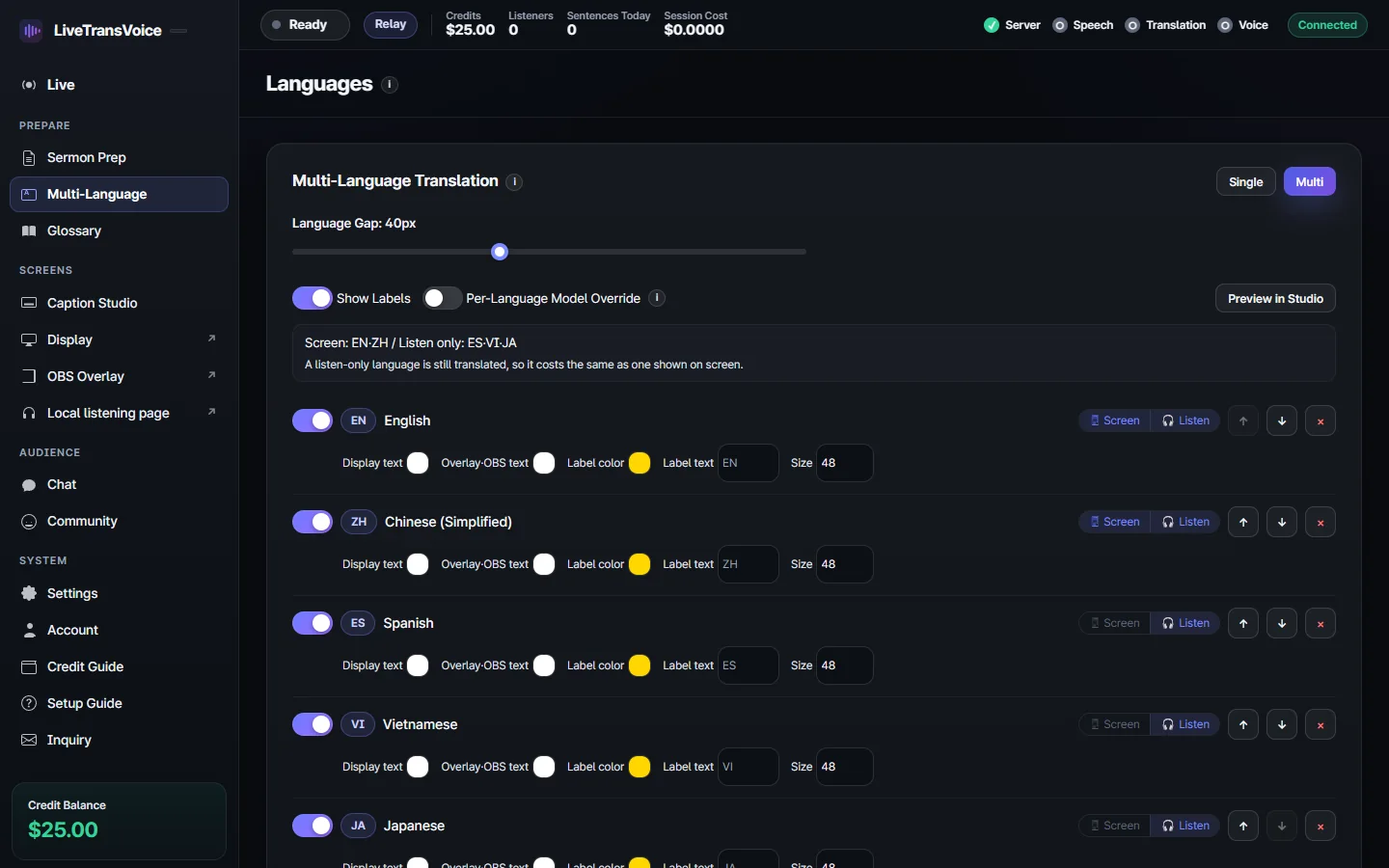
Ten languages on one big screen are unreadable. On the Multi-Language page each language has its own “Screen” and “Listen” switch.
- Main screen: switch “Screen” on for the one or two largest language groups.
- Other languages: switch “Screen” off and they become Listen only; they still reach phones and the subtitle archive.
A listen-only language is still translated, so it costs the same as one shown on screen.
3. Before the event
- License and credit: make sure the balance covers the event. Activate a realtime mode in advance if you plan to use it.
- Glossary: add speaker names, mission-field place names and organization names to the app's Glossary.
- Sound: feed the speaker's microphone from the sound desk directly into the PC, without the band mixed in loudly.
- Internet: use a wired connection for the operator PC if possible. Venue Wi-Fi can get crowded, so tell attendees mobile data works too.
- Rehearsal: run interpretation for a few minutes on the real equipment and check listening on two or three phones.
4. Get the QR code to attendees
- Create the listening room in advance and put the QR code at registration, on seat cards, in the program book and on pre-session slides.
- Print the 8-character code next to the QR.
- For a private event, set a password and keep the public directory option off.
- Remind people to bring earbuds.
Room setup and joining are covered in the listening by QR guide.
5. On the day
- Press Start when a session begins and Stop when it ends.
- For long breaks, Stop rather than Pause: Realtime V1 and V2 keep costing credit while paused.
- Streaming online too? Add the translated subtitles in OBS (OBS and YouTube guide).
- Afterwards, per-language subtitle files let you share the talks again with subtitles (subtitle files guide).
Running several halls at once
One license can have one listening room open at a time. To interpret in several halls simultaneously, each hall needs its own operator PC and license activation. Contact us from the website about using more than one PC.
Common questions
How many languages can run at once?
Up to 10. Relay and Realtime V1 choose from all supported languages; Realtime V2 from 13.
Is there a limit on attendees?
Each attendee connects from their own phone browser. For a large event, rehearse to check the venue's internet.
Do we need to rent receivers?
No. Attendees' phones and earbuds do that job.
Try it this Sunday
Install it on a Windows PC and request a license to begin. Listeners do not need to install anything.
Request a license · Download